
 Outlook and Exchange from Delphi, without the plumbing
MAPI.Kit is a Delphi class library that gives object-oriented access to Extended MAPI, the core API of Microsoft Outlook and Exchange. Instead of interfaces, property tag arrays and SRowSet structures you work with sessions, stores, folders and messages – the way you know them from the Outlook Object Model and CDO 1.21 – and with any MAPI message store, not only with PST files.
MAPI.Kit is the natural continuation of our Extended MAPI in DELPHI examples: the same low-level translations of the MAPI headers are still there, but the everyday work now takes a few lines.
Delphi XE7 or later (developed and tested with Delphi 13 Florence) · Win32 and Win64 · needs an installed MAPI client (Outlook) of the same bitness · VCL-free class layer
What MAPI.Kit is for
- Log on to a profile (with or without a logon dialog), or open a
.pstfile headless, without any Outlook profile. - Profile administration: create, copy and delete profiles, Exchange profiles from Autodiscover, accounts (POP3, IMAP, Exchange, Hotmail, LDAP).
- Message stores, folders and messages: create, copy, move, delete, search with restrictions, sort and filter contents tables.
- Typed Outlook items: contacts, appointments with recurrence, tasks, journal entries and sticky notes; categories.
- Compose and send mail with recipients, HTML body and attachments; read the best body (HTML, RTF or text).
- Address book and GAL, notifications (new mail, object changes), free/busy, folder permissions, rules, out of office, delegates and Outlook forms.
- Signed and encrypted mail (S/MIME and OpenPGP) and export to
.msg,.eml, iCalendar and vCard together with the other kits.
How it is organised
- One
uses MAPIKit;gives every class and record of the class layer as a type alias; the procedural helper units (MAPIKit.Util,MAPIKit.PropUtils,MAPIKit.FldUtils, …) are added when needed. - The class layer:
TMAPISession,TMAPIProfileAdmin,TMAPIStore,TMAPIFolder,TMAPIMessagewith its recipients and attachments, the typed Outlook items, tables, restrictions, notifications, free/busy, permissions and forms. - Underneath: the Delphi translations of the MAPI and EDK headers (
ExtendedMAPI), shared with the earlier examples. - Clear rules: an object reached through a property is owned by its parent, an object returned by a function belongs to the caller; every failed MAPI call raises
EMAPIErrorwith the symbolic name and the provider’s own text; every date and time is local time. CheckMAPItells, before anything else, whether MAPI is missing or the bitness of the program does not match Outlook’s.
Getting started
Open a PST file without an Outlook profile and print the 10 newest messages of every mail folder (the Getting Started program of the guide, shortened):
Log on to a profile without a dialog, then compose and send a message with recipients and an attachment:
More examples, the rules of ownership, errors and time zones, and every class, property, method and routine are in the Class Reference and Developer Guide.
Part of the IMIBO mail toolkit
Every kit gives the same answer for the same message: the kits share one property catalogue, one message contract and one JSON property dump, so a message read by one kit can be written, converted or compared by any other.
MAPI.Kit · PST.Kit · Msg.Kit · MIME.Kit · Crypto.Kit · Autodiscover.Kit · Graph.Kit · EWS.Kit
MAPI.Kit is developed by IMIBO; the source code is not public. For licensing, custom development or questions write to info@imibo.com.
MAPI.Kit Class Reference and Developer Guide (PDF)
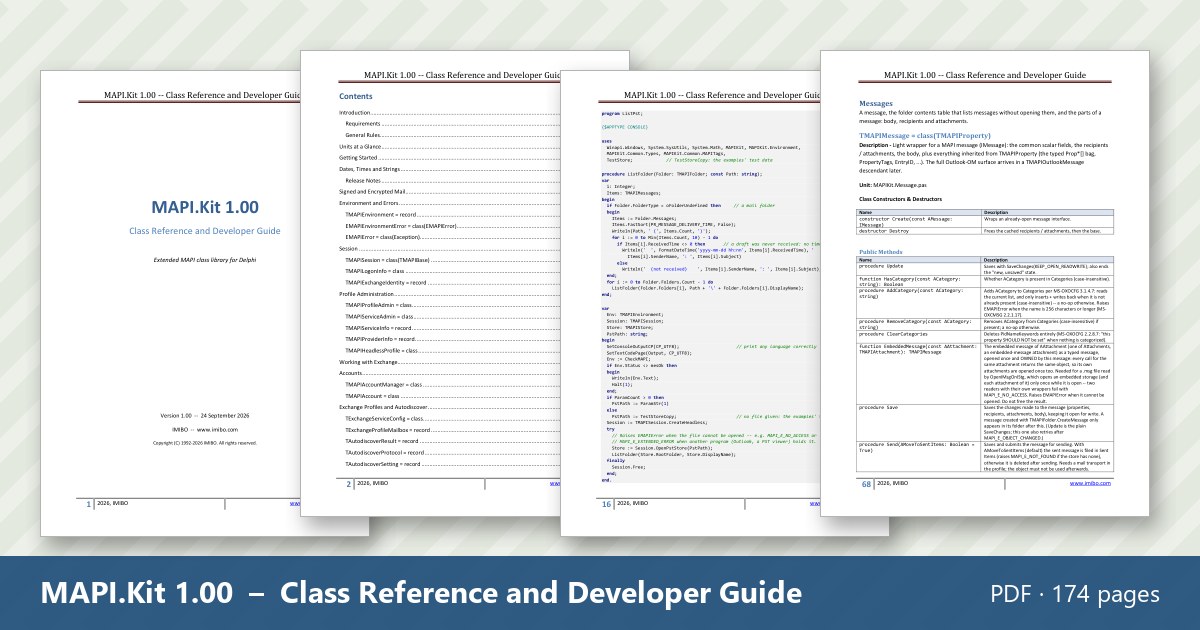
MAPI.Kit 1.00 – Class Reference and Developer Guide · PDF, 174 pages, English, October 2026. Introduction and requirements, the units at a glance, getting started, dates and strings, and a chapter for every area – session, profiles, Exchange and Autodiscover, stores, folders, messages, Outlook items, recurrence, address book, tables, properties, restrictions, categories, notifications, free/busy, permissions and rules, delegates, forms, Internet formats – with every class, property, method and routine described, usage examples, the 24 example projects and the road map.
The document is free. Enter your email address and you will receive a personal download link.
Questions about MAPI.Kit: info@imibo.com.
Example application: MAPIInspectorLite (free download)
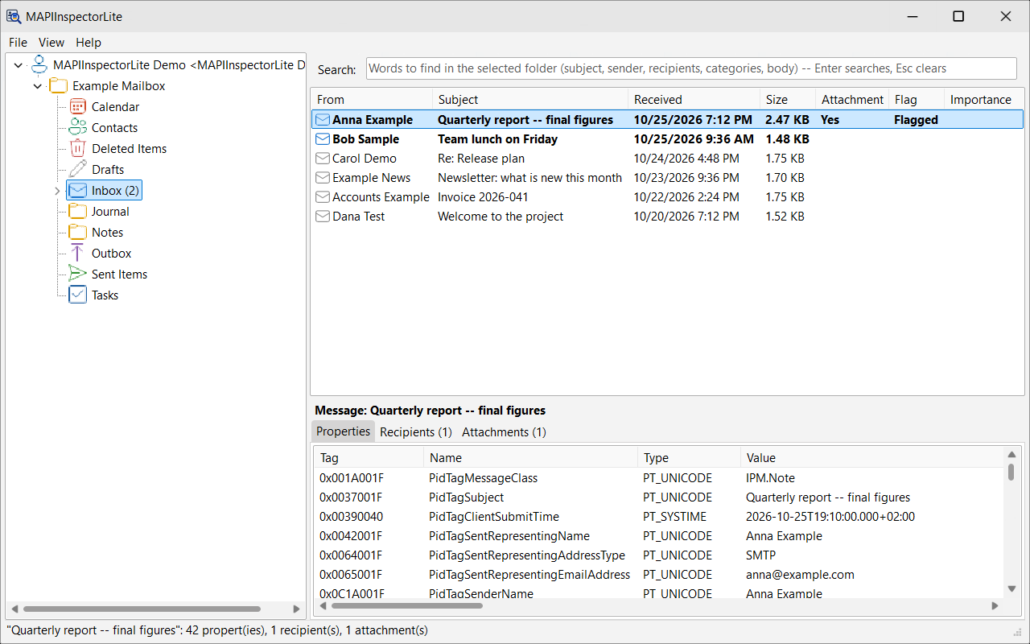
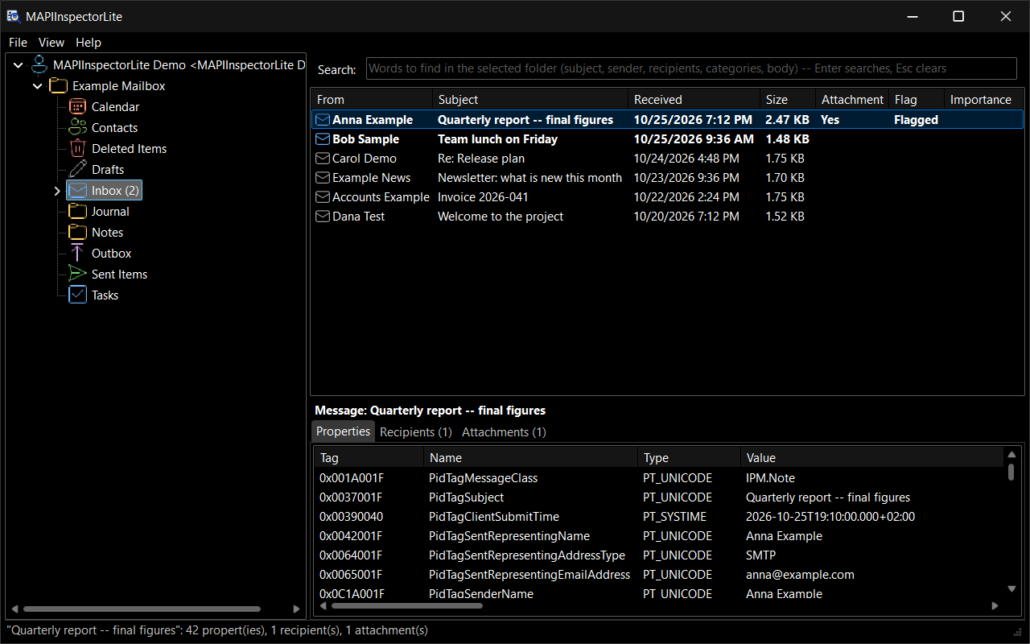
 MAPIInspectorLite is a free, read-only viewer of Outlook profiles written with MAPI.Kit – the same program as GraphInspectorLite, EWSInspectorLite and PSTInspectorLite with another data source: an Outlook profile of this Windows user, read through Outlook’s MAPI and shown as Outlook’s Folder List – every store of the profile (the mailbox, archives, shared mailboxes, .pst files, Public Folders) with its folders of every kind, the items of a folder page by page with sorting and a local search (subject, sender, recipients, categories and body), the MAPI properties with their descriptions, recipients and attachments of every item, messages with a safe HTML view (no scripts, external pictures blocked until you allow them), Save as .msg / .eml, calendars, contacts and tasks, light and dark themes. It needs classic Outlook of the same bitness (64-bit Outlook: the Win64 exe, 32-bit Outlook: the Win32 exe) and never changes a store or a profile.
Screenshots
User guide
The guide of MAPIInspectorLite, as it comes with the program (UserGuide.md in the ZIP). Open a section to read it.
Overview
MAPIInspectorLite is a read-only viewer of Outlook profiles: it opens a profile of this Windows user through Outlook’s MAPI and shows every store of it — the mailbox (Exchange, Microsoft 365, Outlook.com, IMAP, POP), an archive, a shared or delegated mailbox added to the profile, .pst files and Exchange Public Folders: the mail folders, the messages with their MAPI properties, recipients and attachments, the calendars, contacts and tasks. It is built on the IMIBO kits (MAPI.Kit, Msg.Kit, MIME.Kit, Crypto.Kit, Shared) and has no third-party code. It never changes a store or a profile.
It is the same program as GraphInspectorLite (Microsoft Graph), EWSInspectorLite (Exchange through EWS) and PSTInspectorLite (.pst / .ost files without Outlook) with another data source: the windows, lists, panels and item windows are the shared viewer of Shared\Vcl\Inspector.
Requirements
- Windows 10 or 11 and classic Outlook (Microsoft 365 Apps, Outlook 2016 / 2019 / 2021 / 2024) installed — MAPI comes with it. The new Outlook for Windows has no MAPI.
- The same bitness as Outlook: the 64-bit Outlook needs
Win64\MAPIInspectorLite.exe, the 32-bit OutlookWin32\MAPIInspectorLite.exe. The other one says so in plain words (“this is the 32-bit MAPIInspectorLite, the Outlook (MAPI) of this computer is 64-bit — start the Win64 MAPIInspectorLite.exe”) and opens no profile. - At least one Outlook profile (Outlook creates one at its first start; more in Control Panel > Mail > Show Profiles).
- For HTML message bodies: the Microsoft Edge WebView2 runtime (part of Windows 11, installed with Edge on Windows 10) and
WebView2Loader.dllnext toMAPIInspectorLite.exe(the build copies it there, see “Files”). Without them the bodies are shown as plain text. - Outlook may be running at the same time: MAPIInspectorLite logs on with a session of its own.
Opening a profile
File > Open Outlook profile… lists the Outlook profiles of this Windows user; the default profile is marked “(default)” and selected. Open (or a double click) logs on to the profile in the background — Cancel stops waiting. When the profile needs a password (an Exchange server that does not take the Windows sign-in), the mail provider shows its own logon window; MAPIInspectorLite never sees or keeps the password.
The profile appears in the tree under its name and is opened again at the next start. File > Close the selected profile… logs off and takes it off the list — the profile itself is not changed. A profile that was deleted or renamed meanwhile is shown with “the Outlook profile … is not there any more”.
Stores are read as Outlook reads them: an Exchange mailbox in cached mode from its local .ost, an online one from the server. A store that cannot be reached (an Exchange server out of reach) shows the reason in its name; the other stores of the profile still open.
The main window
- The tree (left) is the profile as Outlook’s Folder List: one root per profile; under it one node per store of the profile, named as in Outlook — the default store (the mailbox) first, then an archive, a shared mailbox, a
.pst, Public Folders (“All Public Folders”) — and below each store every folder in its place: mail folders (Inbox, Sent Items, … with the unread count), calendars, contact folders and task folders, each with the icon of its kind, and their subfolders below them. Hidden system folders (search roots, views, conversation settings, …) are not shown, as in Outlook. Sibling folders are listed by name. Folders are read when they are expanded. - The list (right): the items of the selected folder, with columns of its kind:
- mail: From, Subject, Received, Size, Attachment, Flag, Importance — unread messages in bold, newest first;
- calendar: Subject, Start, End, Location, Organizer, Recurring, All day (a recurring series is one row), newest first;
- contacts: Name, Company, E-mail, Phone, by name;
- tasks: Title, Due, Completed, Status, Importance, by due date.
The list is read 50 items at a time in the background; the next 50 come when the last row scrolls into view. A click on a column header sorts the rows read so far (again: the other direction); Ctrl+C copies the selected rows.
- Search (above the list): type words and press Enter — every word must occur (case-insensitive) in the subject, the sender, To / Cc, the categories or the body (plain text, HTML or rich text; a signed / encrypted body is not searched); Esc clears it. The search runs on this computer through the selected folder, a few hundred items per step: the hits appear while it goes on, and another folder stops it.
- View > Refresh (F5) reads the folder again.
- The details panel (below the list, View > Details panel) shows the selected item — or, with no item selected, the folder itself; its title line says which (“Folder: Inbox”, “Message: <subject>”, “Event: …”). During a search it stays empty until a found item is selected (it says so), so nothing in it can be taken for a hit:
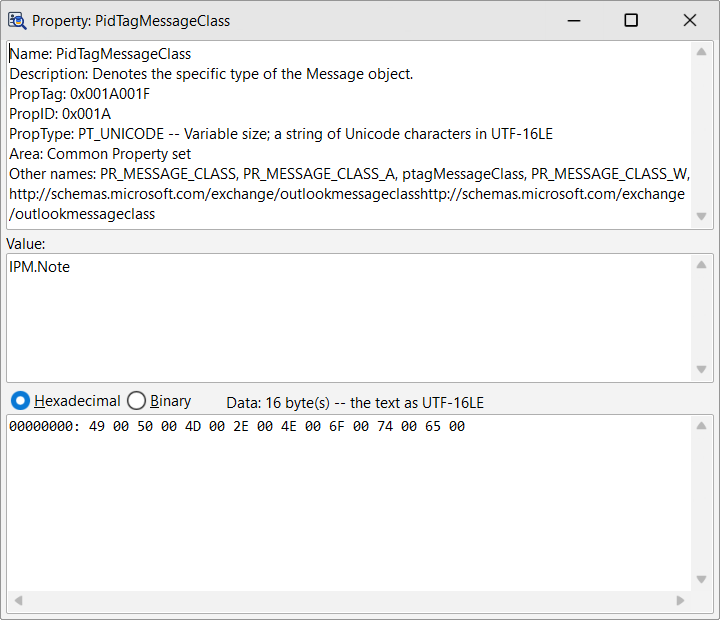
- Properties: the MAPI properties as the store gives them — tag, canonical name, type, value, description (named properties by their name); a tooltip on a property tells what the property catalog knows of it (description, tag / ID / type, area, property set and LID / name of a named property, other names); a double click, Enter or Property details… in the context menu opens the property window — that information, the whole value and its bytes as a hexadecimal or binary dump;
- Recipients: kind (To, Cc, Bcc, …), name, address;
- Attachments: name, size, type, kind; Save as… / Save all to a folder… from the context menu, a double click saves one. With a folder selected, the status bar gives its number of items and unread items and of its properties.
Opening items
A double click (or Enter) on a row opens it in its own window; several windows can be open at once.
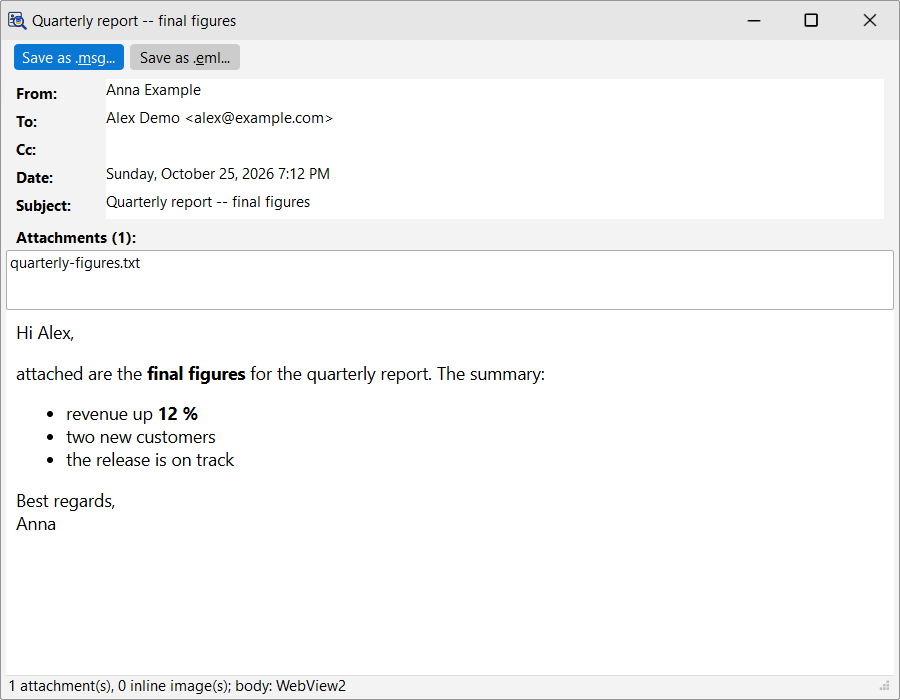
- A message: From, To, Cc, Date, Subject; the attachments (inline pictures are shown in the body, not listed); Save as .msg (an Outlook message file) and Save as .eml (an Internet message). The body is the HTML body, else the rich-text (RTF) body as HTML, else the plain text. It is shown safely:
- no scripts run, and nothing is loaded from the network — pictures that are part of the message are shown;
- when the message refers to pictures or styles on the internet (newsletters, tracking pixels), a bar says “External pictures and styles are blocked to protect your privacy”; Show external content loads them for this message (still without scripts);
- a link opens in your default browser, never inside MAPIInspectorLite.
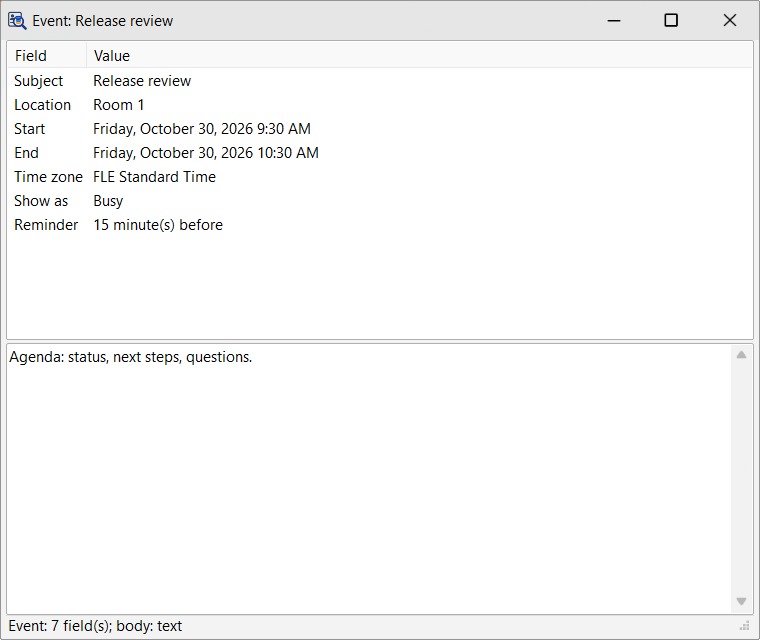
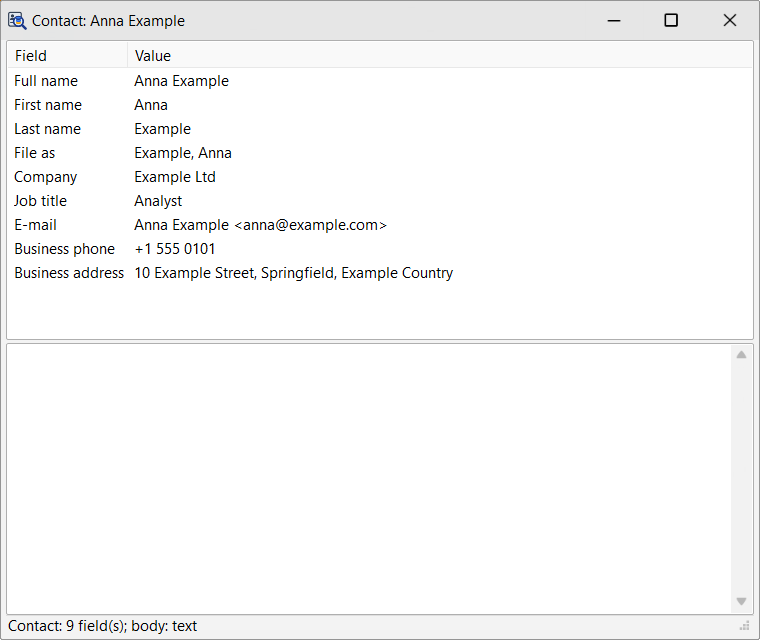
- An event, a contact or a task: the fields that are set (times, time zone, recurrence in words, attendees, reminder, addresses, phones, status, …) and the description / notes below them.
Appearance
View > Theme: System (the default — follows Windows’ light / dark app mode, also while the program runs), Light or Dark. The icons follow the theme.
Files
| What | Where |
|---|---|
| The opened profiles (their names only) | %LOCALAPPDATA%\IMIBO\MAPIInspectorLite\accounts.json |
| The theme setting | %LOCALAPPDATA%\IMIBO\MAPIInspectorLite\settings.json |
| The WebView2 profile (cache of the body view) | %LOCALAPPDATA%\IMIBO\MAPIInspectorLite\WebView2 |
| A shown HTML body (while its window is open) | %TEMP%\MAPIInspectorLite-<guid>.html (deleted on close) |
WebView2Loader.dll |
next to MAPIInspectorLite.exe (from Shared\Vcl\Inspector\redist\WebView2.<platform>) |
Nothing is written into a store or a profile, and no credential is kept.
Building
MAPIInspectorLite\MAPIInspectorLite.dproj(Win64 / Win32), search path..\Shared;..\Shared\Vcl; ..\Shared\Vcl\Inspector;..\MAPI.Kit;..\Bridge;..\Msg.Kit;..\MIME.Kit;..\Crypto.Kit;..\Autodiscover.Kit(include path..\MAPI.Kit) — no third-party code. The program’s own units areMAPIInspectorLite.dpr,MapiInspectorLite.Backend(the Outlook-profile source of the viewer) andMapiInspectorLite.Profile(the “Open Outlook profile” dialog); the data source itself is MAPI.Kit’sMAPIKit.MailboxSource, the viewer isShared\Vcl\Inspector. The post-build event copies the platform’sWebView2Loader.dll(Microsoft’s NuGet package Microsoft.Web.WebView2, seeShared\Vcl\Inspector\redist\README.md) next to the exe.- Optional: the conditional define
HTMLVIEWER(with$(HtmlViewer)\sourceon the search path) shows HTML bodies in THtmlViewer when WebView2 is not available — the one third-party component, opt-in.
How it reads a profile
MAPIInspectorLite runs every MAPI call of a profile on one thread of its own: MAPI is initialized there, the profile is logged on there and logged off there when the profile is closed. The windows never touch MAPI themselves; while a call runs they stay responsive to a provider’s logon window.
Limits
- Read-only: nothing is changed in a store (opening a message does not mark it as read).
- The properties are those the store gives — for an Exchange or a
.pststore also the ones the provider calculates (PSTInspectorLite shows only what a file stores). - A large folder is read once when it is selected: all its rows with the list columns, sorted on this computer (a 16,000-message Inbox: about 2 seconds from Outlook’s cache, more the first time). An online Exchange store reads over the network.
- What you see is what was in the store when the folder was read; View > Refresh reads it again.
- Hidden folders and the part of a store above the mailbox (search folders, views, …) are not in the Lite version.
The download (ZIP, 7.4 MB) contains:
Win64\MAPIInspectorLite.exeandWin32\MAPIInspectorLite.exe– the program for the 64-bit and the 32-bit Outlook, no installation (with Microsoft’sWebView2Loader.dllnext to it).Source\– the complete source code of MAPIInspectorLite and of the viewer it shares with GraphInspectorLite, EWSInspectorLite and PSTInspectorLite (Delphi 13, VCL): the project, its units and forms, the icon.UserGuide.mdandREADME.txt.
Note: The ZIP holds the executable and the source code of the program, but not the libraries it is built on – MAPI.Kit, the shared units, Msg.Kit, MIME.Kit and Crypto.Kit; to compile the source you need those kits.
Enter your email address and you will receive a personal download link.
Questions about MAPIInspectorLite: info@imibo.com.

