
PST Inspector User Guide
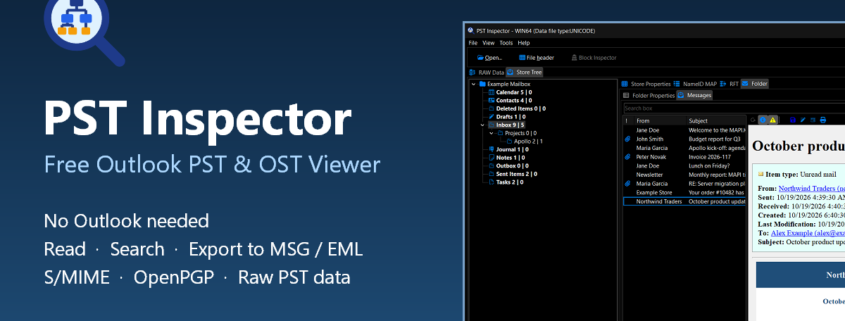
PST Inspector opens Outlook data files (.pst, .ost) and single messages (.msg, .eml) without Outlook, Office or MAPI. It shows the mailbox the way Outlook does – folders, messages, contacts, calendar, tasks, notes – and, for specialists, everything underneath: properties, named properties, the node and block B-trees and the raw bytes of every block. Nothing is ever written to the data file.
This guide describes PST Inspector 0.9.9.17 and later. See also the product page (features, version history).
Contents
- Getting started
- The main window
- Store Tree: folders and items
- Reading pane and message window
- Saving, printing and exporting
- Exporting many messages
- Find in file
- Signed and encrypted messages
- RAW Data: the file structure
- Tools
- View settings and what is remembered
- Keyboard shortcuts
- Updates
- Questions and problems
1. Getting started
PST Inspector needs no installation: copy PSTInspector.exe to any folder and run it. Outlook does not have to be installed; if it is, PST Inspector does not use it.
Open a file in any of these ways:
- File > Open… (Ctrl+O) – a
.pst/.ostdata file, or a.msg/.emlmessage; - drag the file from Explorer onto the window;
- the command line:
PSTInspector.exe "C:\Mail\archive.pst"; - File > Recent files – the last eight files (files that no longer exist are dropped from the list).
Both formats of data files are read: ANSI (Outlook 97–2002) and Unicode (Outlook 2003 and later), including .ost files of Exchange / Microsoft 365 accounts and files with the 4K page layout. Encoded files (compressible and high encryption) are decoded on the fly. Close Outlook (or the profile that uses the file) first if the file is in use.
File > Close (Ctrl+F4) closes the data file and every message window that belongs to it.
2. The main window
The window has two pages:
- Store Tree – the mailbox: folders on the left, the selected folder or the file on the right. This is where most work happens.
- RAW Data – the physical structure of the file: the node B-tree and the block B-tree (see RAW Data).
The status bar shows messages on the left, the progress of long operations in the middle (loading a large folder runs in the background – the window stays usable) and the number of items on the right.
Menus: File (open, close, recent files, export list), View (reload, find, go to a special folder, layout, reading pane, style), Tools (file header, block inspector, go to NID / BID, B-tree check, keys) and Help (this guide, updates, about).
3. Store Tree: folders and items
The folder tree
The tree shows the folders as Outlook shows them. Each folder shows its item count; special folders (Inbox, Sent Items, Calendar, Contacts, …) are marked. View > Go to jumps to a special folder (Ctrl+1 … Ctrl+9 for the first nine; folders that the file does not have are disabled).
The check box Show system and hidden folders (top right) also shows the folders Outlook hides: the root folder, search folders, views, reminders, conversation settings and similar. It can be switched while a file is open.
The file (store) node
Select the top node of the tree to see the data file itself:
- Store Properties – every property of the message store (display name, record key, the entry ids of the special folders, …), including calculated properties.
- NameID MAP – the named property map of the file: for every named property its number (0x8000 and above), the property set GUID and the name or numeric id, with the canonical
PidLid/PidNamename where it is known. It belongs to the whole file and is shown whatever node is selected. The search box filters it. - RFT – the receive folder table: which folder receives which message class.
A folder
Select a folder to see it on the Folder page:
- Folder Properties – all properties of the folder.
- Messages – the items of the folder. The columns follow the kind of folder, like in Outlook:
- mail folders: importance, attachment, from, subject, received, size, categories (Sent Items, Outbox and Drafts show To and the sent date instead);
- Contacts: business cards (name, company, job title, phones, e-mail) or a table;
- Calendar: subject, location, start, end, recurrence;
- Tasks: status, due date, % complete;
- Journal: entry type, start, duration;
- Notes: coloured note icons (the colour of the note’s category) or a table.
Working with the item list:
- click a column header to sort (again to reverse);
- type in the search box above the list (Ctrl+F) to filter it while you type – every visible column is searched; to search the whole file use Find in file;
- Ctrl+C copies the selected rows (with the column names) as tab-separated text, ready for Excel;
- File > Export list… (Ctrl+E) saves the whole list as CSV or TSV;
- View > Layout switches between table, cards and icons where the folder kind allows it; the choice is remembered per folder kind;
- View > Reload folder (F5) reads the folder again;
- double-click an item to open it in its own window.
Every list in PST Inspector (properties, recipients, attachments, named properties, …) has Ctrl+C, sorting and a filter box, and can be exported.
Search folders may still list messages that were deleted or moved later; such a row shows what the folder remembers, and opening it says that the message is no longer in the file.
4. Reading pane and message window
Reading pane
View > Reading pane shows the selected message Right of or Below the list (Off hides it). Drag the splitter to size it; PST Inspector remembers the position and the size. The pane follows the selection; holding an arrow key does not render every message on the way.
Message window
Double-clicking an item opens it in its own window; several can be open at the same time, Esc closes one. The window shows:
- the body – HTML, RTF (converted to HTML) or plain text, the best one the message has; inline pictures are shown, Reload with images also loads pictures from the internet (they are not loaded by default);
- Show Header – the internet headers of a received message;
- the side tabs Properties, Recipients (type, name, address) and Attachments (name, size, type, inline). Pin them open with the pin button. Double-click a property or an attachment to inspect it; the context menu of the attachment list has Save all attachments…;
- contacts, appointments, tasks and notes are shown with their own fields (address card, start / end and recurrence, status and due date, …).
Messages saved as files (.msg, .eml) open in a simpler window with the header fields, the body and the attachments (double-click or the context menu saves them).
5. Saving, printing and exporting
In the message window:
- Save As – e-mail as
.msg(Unicode Outlook message with all properties and attachments) or.eml(MIME, RFC 5322); contacts also as vCard 2.1, 3.0 or 4.0 (.vcf); appointments also as iCalendar (.ics, RFC 5545, with time zones, recurrence, attendees, reminders and attachments); - Print and Preview – the print preview shows the pages; the mouse wheel scrolls, Shift+wheel scrolls sideways, Ctrl+wheel zooms;
- Body Source – the HTML source of the body.
Lists are exported with File > Export list… (Ctrl+E, CSV or TSV) or the Export… item of their context menu; properties can also be exported as a JSON property dump.
5a. Exporting many messages
Whole folders, or any number of messages, can be saved as files in one go:
- select messages in the list (Ctrl/Shift+click) and choose Export selected messages… from the list’s context menu, or
- right-click a folder in the tree and choose Export folder…, or
- File > Export messages… (Ctrl+Shift+E) – the selected messages when the message list is in front, otherwise the folder selected in the tree.
The export dialog asks for the target folder and the format:
- .msg – Outlook messages, every item with all its properties and attachments;
- .eml – Internet messages; contacts are written as vCard (
.vcf) and appointments as iCalendar (.ics).
For a folder you can include its subfolders; each one becomes a folder of its own on disk. File names start with the date and time of the message followed by its subject (20260925171353_RE_ Subject.msg); an existing file is never overwritten – the new one gets a number, e.g. name (2).msg.
The export runs in the background: the status bar shows the progress, and File > Cancel export stops it. At the end a summary tells how many items were saved; items that could not be saved are listed under Technical details, and Open folder shows the result in Explorer. Signed and encrypted messages are exported as they are stored (not decrypted).
5b. Find in file
Tools > Find in file… (Ctrl+Shift+F) searches the whole data file, or the folder selected in the tree together with its subfolders:
- Look for – one or more words; an item is found when all words occur (upper / lower case does not matter). Leave it empty to list every item that meets the other conditions;
- In – Subject, From, To / Cc and Body. Searching the body is slower, because every item has to be read; bodies that are encrypted or missing are counted in the status line;
- Kind – all items, mail, contacts, appointments, tasks, notes or journal entries;
- Date from / to – the received (or sent) date; tick the box of a date to use it;
- Only with attachments and Include hidden folders (search folders, views and other system folders).
Press Find (or Enter); the results appear while the search runs and Stop (or Esc) ends it early. Each result shows its folder, sender, recipients, subject, date and size. Double-click a result to open it; its context menu also has Show in folder (the folder opens in the main window with the message selected) and Export selected… (see Exporting many messages). Ctrl+C copies the selected results.
The search box above the message list (Ctrl+F) is different: it filters the folder that is shown, while you type.
6. Signed and encrypted messages
PST Inspector reads S/MIME and OpenPGP messages (PGP/MIME and inline PGP). A coloured bar above the body tells the state: signature valid or not, who signed, whether the message was decrypted. Details… shows the certificates or keys and the checks that were made.
To decrypt, PST Inspector needs your private key: Tools > Keys for signed / encrypted messages… adds certificates (.pfx / .p12) and OpenPGP key files. A decrypted message can be saved as a decrypted .msg copy.
7. RAW Data: the file structure
For data recovery and forensics, the RAW Data page shows the two B-trees of the file as defined by Microsoft’s [MS-PST] specification:
- Nodes BTree – every node (NID): folders, messages, tables, the name-to-id map, …; select a node to see its properties, its data block and its sub-nodes;
- Blocks BTree – every data block (BID) with its file offset, size and reference count.
The position bar under each tree shows where in the file the selected page or block lies. Tools > Go to NID / BID… (Ctrl+G) finds a node or block by its number (decimal, or hexadecimal with 0x or $, e.g. 0x2223).
8. Tools
- File header (Ctrl+H) – every field of the data file’s header (format, encryption, B-tree roots, file size, …).
- Block inspector (Ctrl+B) – the block selected in the Blocks BTree: its bytes decoded, as hexadecimal and binary, the BIDs / NIDs it refers to, and the block trailer (signature, CRC, back pointer).
- Go to NID / BID… (Ctrl+G) – see RAW Data.
- B-tree consistency check… – checks signature, CRC and back pointer of every B-tree page and reports what is damaged. It reads the whole file and can take a while on large files.
- Keys for signed / encrypted messages… – see above.
- Find in file… (Ctrl+Shift+F) – see Find in file.
9. View settings and what is remembered
- View > Style – light, dark and other window styles.
- PST Inspector remembers the window position and size, the splitters, the last page, the reading pane, the layout per folder kind, the recent files and the update settings.
- Settings are kept per Windows user in the registry under
HKEY_CURRENT_USER\Software\IMIBO\PSTInspector; deleting that key restores the defaults.
10. Keyboard shortcuts
| Keys | Command |
|---|---|
| Ctrl+O | Open a file |
| Ctrl+F4 | Close the file |
| Ctrl+E | Export the list that has the focus |
| Ctrl+Shift+E | Export messages (the selected ones, or the folder) |
| Ctrl+Shift+F | Find in file |
| F5 | Reload the folder |
| Ctrl+F | Find in the list (filter box) |
| Ctrl+1 … Ctrl+9 | Go to a special folder |
| Ctrl+C | Copy the selected rows |
| double-click | Open the item |
| Esc | Close a message window |
| Ctrl+H | File header |
| Ctrl+B | Block inspector |
| Ctrl+G | Go to NID / BID |
| F1 | This user guide |
11. Updates
Once a day, when it starts, PST Inspector asks imibo.com whether a newer version exists (only the version number is read; nothing about you or your files is sent). When there is one, the menu bar shows Update available and the About box links to the download. Help > Check for updates… checks at once; Help > Check for updates automatically switches the daily check off.
12. Questions and problems
The file does not open. PST Inspector says why: not a PST / OST file, or a header or B-tree it cannot read. Run Tools > B-tree consistency check to see which part is damaged; the RAW Data page still shows what can be read.
A folder shows fewer items than Outlook. Turn on Show system and hidden folders; some items live in hidden folders. For a damaged file, the folder’s contents table may be incomplete – the Nodes BTree still lists every message node.
A message body looks different from Outlook. PST Inspector shows the body the message has (HTML, RTF or text) and never runs scripts or loads remote content unless you choose Reload with images.
Is my data changed? No. PST Inspector opens data files read-only and writes only the files you save or export.
Questions and suggestions are welcome at info@imibo.com.
Download
PST Inspector is free and needs no installation. Get your download link on the PST Inspector product page.